What is HDMI?
Author: Site Editor Publish Time: 18-09-2024 Origin: Site
What Is HDMI? A practical guide to HDMI interfaces, cable categories, connector types, bandwidth, key features, and choosing the right connection for 4K, 8K, gaming, commercial AV, and long-distance display links. |
HDMI, short for High-Definition Multimedia Interface, is a digital interface that carries video, audio, and control data between a source device and a display or audio system. Common source devices include computers, game consoles, media players, and set-top boxes; common receiving devices include televisions, monitors, projectors, soundbars, and AV receivers.
HDMI was introduced in 2002 and has developed through several specification generations. A reliable connection depends on the complete signal chain: the source, cable, adapters or extenders, receiver, display, and the video or audio format must all support the required feature. A cable's certified category does not add a capability that either connected device lacks.
■How HDMI Works
An HDMI source sends digital picture and sound information to a receiving device. Earlier HDMI generations use Transition-Minimized Differential Signaling (TMDS). Higher-bandwidth modes introduced with HDMI 2.1 and expanded in HDMI 2.2 use Fixed Rate Link (FRL), while TMDS remains available for backward compatibility.
The Display Data Channel (DDC) lets the source read the display's Extended Display Identification Data (EDID), which describes supported resolutions, refresh rates, color formats, and audio capabilities. High-bandwidth Digital Content Protection (HDCP) is a separate content-protection handshake. EDID exchange and HDCP authentication are related parts of connection setup, but HDCP credentials are not stored in EDID.
If the source and display do not agree on a supported format, the system may fall back to a lower resolution or refresh rate, lose HDR or audio features, or show no picture. This is why troubleshooting must consider every component rather than the cable alone.
■HDMI Cable Types and Bandwidth
HDMI Licensing Administrator uses official cable names rather than informal labels such as “HDMI 2.1 cable.” Choose a cable by the bandwidth and features required by the system, then confirm the official name and certification label on the packaging. The bandwidth figures below are maximum cable-class capabilities, not a guarantee that every source or display supports every listed video format.
| Official cable name | Maximum bandwidth | Typical use |
|---|---|---|
| Standard HDMI Cable | 4.95 Gbps class | Legacy 720p or 1080i systems |
| High Speed HDMI Cable | 10.2 Gbps | 1080p, 3D, Deep Color, and up to 4K at 30 Hz |
| Premium High Speed HDMI Cable | 18 Gbps | 4K at 60 Hz, HDR, and expanded color spaces |
| Ultra High Speed HDMI Cable | 48 Gbps | 4K at 120 Hz and 8K at 60 Hz system configurations |
| Ultra96 HDMI Cable | 96 Gbps | Full HDMI 2.2 bandwidth, including future high-resolution and high-refresh applications |
“With Ethernet” cable variants include the HDMI Ethernet Channel. That channel works only when both connected devices support it. For current products, the Premium and Ultra certification labels are especially useful because the QR code can be checked against the HDMI certification system.
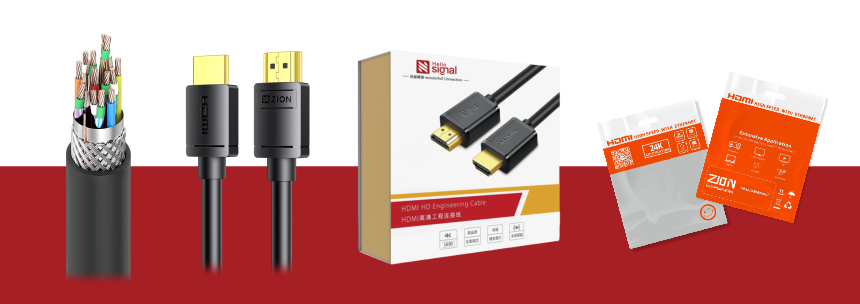
For current ZION options, compare the required resolution, refresh rate, distance, and installation method in the HDMI cable product range. Confirm the exact model datasheet and tested length before ordering.
■HDMI Ports and Connector Types
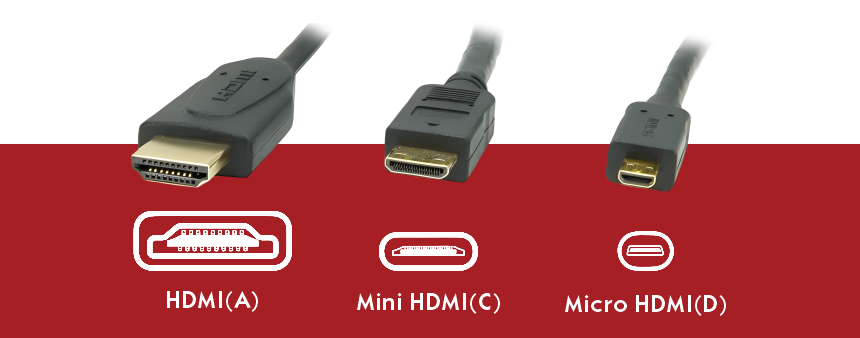
The connector shape does not by itself determine bandwidth or feature support. The most familiar connectors are Type A, Type C, and Type D. A cable assembly, source, and display must still meet the required performance level.
Type A (Standard): the common 19-pin connector used on TVs, monitors, consoles, computers, projectors, and AV equipment.
Type C (Mini): a compact 19-pin connector used on some cameras and portable devices.
Type D (Micro): a smaller 19-pin connector designed for compact devices.
Type E (Automotive): an automotive connector format with retention and environmental considerations for vehicle installations.

Can USB-C connect to HDMI?
Yes, but a USB-C connector alone does not guarantee video output. The USB-C port must support a compatible display-output mode, and the cable or adapter must match that implementation. Some products use native HDMI Alt Mode, while many USB-C-to-HDMI adapters convert a DisplayPort Alt Mode signal to HDMI. Check the source-device specification for supported resolution, refresh rate, HDR, HDCP, and audio before selecting an adapter.
■HDMI Specification Evolution
Specification versions describe the technology available to product designers, but individual devices may implement only selected features. Check the product's stated formats and capabilities instead of assuming that a version number guarantees every option.
| Specification generation | Maximum link bandwidth | Notable additions |
|---|---|---|
| HDMI 1.0 | 4.95 Gbps | Digital video and multichannel audio over one interface |
| HDMI 1.3 | 10.2 Gbps | Deep Color, xvYCC, lossless audio formats, Mini connector |
| HDMI 1.4 | 10.2 Gbps | 4K up to 30 Hz class formats, ARC, HEC, Micro connector |
| HDMI 2.0 | 18 Gbps | 4K at 60 Hz class formats, up to 32 audio channels |
| HDMI 2.1 | 48 Gbps | FRL, 4K120 and 8K60 class formats, eARC, VRR, ALLM, Dynamic HDR |
| HDMI 2.2 | 96 Gbps | Next-generation FRL, Ultra96, Latency Indication Protocol, higher uncompressed format options |
■Important HDMI Features
ARC and eARC
Audio Return Channel (ARC) sends audio from a TV back to a soundbar or AV receiver over the same HDMI link used for the display connection. Enhanced Audio Return Channel (eARC) supports higher-bandwidth audio formats and improved device discovery. Both connected ports must support the required return-channel feature. Ultra High Speed and Ultra96 HDMI Cables are designed for eARC; operation over some earlier “with Ethernet” cable types may be possible, but those cable classes are not certified for eARC.
CEC
Consumer Electronics Control (CEC) allows compatible HDMI devices to exchange control commands, such as power, input selection, and volume. Manufacturers often use their own brand names for CEC, and implementation varies, so users may need to enable it in device settings.
HDR, color depth, and chroma subsampling
High Dynamic Range (HDR) can carry a wider range of brightness and color information than Standard Dynamic Range, but the exact result depends on the content, source, display, metadata format, and signal bandwidth. Greater color depth provides more tonal steps: 8-bit RGB represents about 16.7 million combinations, 10-bit about 1.07 billion, 12-bit about 68.7 billion, and 16-bit about 281 trillion.
Chroma subsampling reduces color-detail data while retaining full brightness detail. In simplified terms, 4:4:4 retains full horizontal color sampling, 4:2:2 shares chroma information between adjacent horizontal pixels, and 4:2:0 reduces chroma sampling in both horizontal and vertical directions. Text and computer graphics often benefit from 4:4:4, while 4:2:0 is common in video distribution.

Gaming and high-refresh features
Variable Refresh Rate (VRR), Auto Low Latency Mode (ALLM), Quick Frame Transport (QFT), and Quick Media Switching (QMS) can improve gaming or media behavior when implemented by both ends of the link. These are product features, not automatic benefits of every device or cable that references the same HDMI specification generation.
■How to Choose the Right HDMI Cable
Define the signal format. Record the target resolution, refresh rate, color depth, chroma format, HDR mode, and audio requirements.
Check every device. Confirm that the source, display, AV receiver, switch, splitter, adapter, and extender support the same required features.
Select the certified cable class. Use Premium High Speed for certified 18 Gbps applications, Ultra High Speed for up to 48 Gbps systems, or Ultra96 for bandwidth above 48 Gbps and full HDMI 2.2 capability.
Confirm the installed length. HDMI does not define one universal maximum cable length. Performance depends on conductor construction, active electronics, optical conversion, connector quality, routing, and the signal format.
Plan for the pathway. For long or difficult routes, consider an active or optical HDMI assembly or an appropriate extender. Check directionality, power requirements, bend limits, wall rating, and service access before installation.
Verify before closing the route. Test the real source, display, cable, and target format before concealing the cable or completing the project handover.
What to specify for an HDMI cable order Provide the source and display models, target resolution and refresh rate, HDR and audio needs, connector types, cable length, installation route, in-wall or environmental requirements, directionality, active or passive preference, quantity, and any required certification or test documentation. |
■Common HDMI Problems and Checks
No picture or intermittent blanking: reseat the connectors, test a shorter known-good cable, remove adapters, and lower the resolution or refresh rate to isolate bandwidth or connection problems.
Sparkles or image dropouts: check cable length, cable class, connector damage, tight bends, nearby interference, and active-cable direction.
HDR or high refresh rate unavailable: confirm the correct input mode on the display, source output settings, intermediate equipment capability, and cable bandwidth.
ARC or eARC not working: use the labeled ARC/eARC ports, enable the feature and CEC where required, check the audio format, and confirm that both devices support the same return-channel mode.
Protected content fails: verify HDCP compatibility across every device in the path and restart the system to repeat the handshake.
■HDMI FAQ
What does HDMI carry?HDMI can carry digital video, multichannel audio, device-control data, display capability information, and supported auxiliary features over one connection. |
Do I need an Ultra High Speed HDMI Cable for 4K at 120 Hz?For a system configured up to 48 Gbps, an officially certified Ultra High Speed HDMI Cable is the appropriate choice. The source, display, and any intermediate device must also support the required 4K120 format. |
When is an Ultra96 HDMI Cable needed?Ultra96 is intended for HDMI 2.2 systems using maximum bandwidths above 48 Gbps, including 64, 80, or 96 Gbps product modes. It is also the cable class designed to support all HDMI 2.2 applications. |
Are HDMI cables backward compatible?Current Ultra HDMI cable classes can be used with earlier HDMI devices, but the connection operates only at features supported by the complete system. Connector type and active-cable direction must still match. |
Is there a fixed maximum HDMI cable length?No single maximum length applies to every HDMI cable. Usable reach depends on signal format, cable category, conductor and shielding design, active electronics, optical conversion, installation quality, and the connected equipment. |



 Fiber Optic Tools
Products 6 families
Solutions 6 markets
Resources Tools & docs
Certificate
Certification and compliance references for project review, qualification and purchasing documentation.
 Fiber Optic CableAccess and backbone
 Ethernet CableCat5e to Cat8
 Coaxial CableRF and video signal
 Fire, Security & AlarmSafety systems
 Voice, Audio & VideoSignal cabling
 Power & Control CableEnergy and control
Fiber optic cable systems
Outdoor, indoor, FTTH and distribution cable lines for access networks, backbone routes and campus deployments.
 Telecom & ISP NetworksFTTH, PON, ODN
 Data Center InfrastructureServer room cabling
 Building Low-Voltage SystemsBMS, AV, weak current
 Security & Fire ProtectionAlarm, CCTV, access
 Industrial Automation CablePLC, RS485, fieldbus
 Energy & Power InfrastructureSolar, battery, power
Telecom & ISP Networks
For FTTH / PON access, outdoor fiber deployment, aerial routes, duct routes, direct burial routes, rural broadband and ODN planning.
Tools
Use calculators and planning tools for conduit capacity, PoE voltage drop and fiber optic link loss budget work.